

Granting access to YouTube channel
Occasionally, we use YouTube for paid ads (NOTE: these videos will NOT appear on your public page). If you have a channel, here’s how you can add Lokal as an admin to your channel (don’t have a channel yet?):
- Sign in to your YouTube account
- Click on your profile picture in the top right corner
- Select “YouTube Studio”
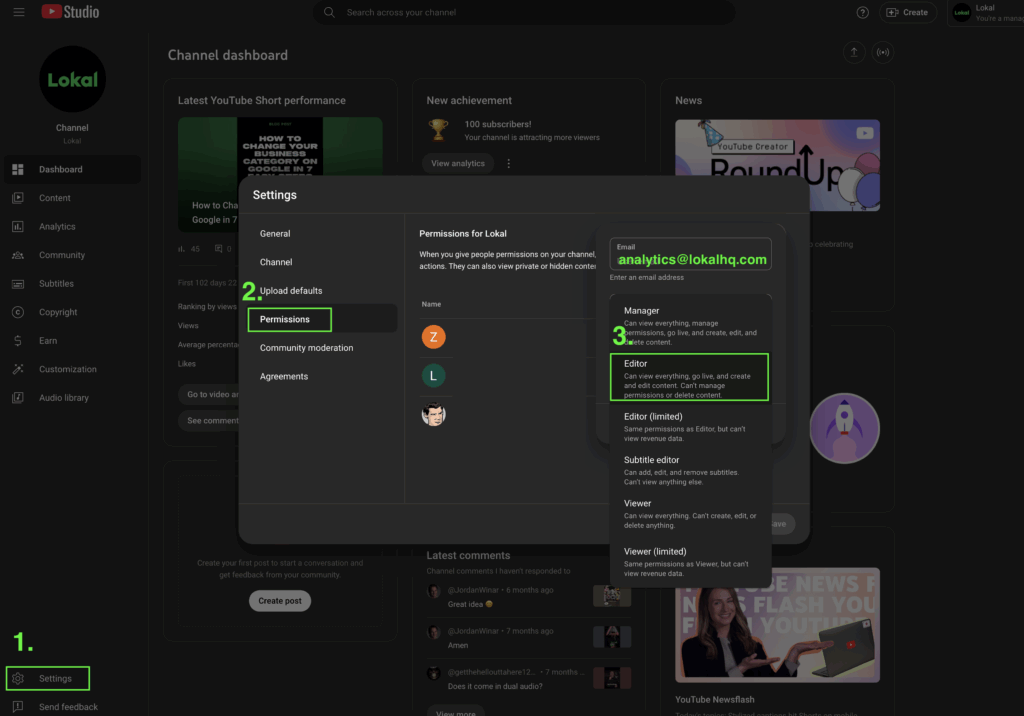
- From the left menu, click on “Settings” (1 in image below)
- Select the “Permissions” tab (2 in image below)
- Click the “INVITE” or “+” button (3 in image below)
- Enter analytics @ lokalhq.com to add as admin
- Choose permission level – Editor
- Click “INVITE” to send the invitation
We will receive an email invitation that we need to accept before we can access your channel as an admin. So please let us know after you do this, so we know to look for invite.
Create a YouTube Channel
- Login into Gmail with your company email (e.g. not @gmail.com). **If you don’t use Gmail for your business, let us know.
- Go to YouTube.com and click the Avatar or Letter in upper right corner.
- Click “Create channel”. Add name and handle (eg “AceHVACPlumbing”). Then follow instructions above.
