
Granting access to Google Ads
- Granting Access Google Ads Account
- Creating a Google Ads Account
- Add Lokal Analytics User
- Advertiser Verification
- Whitelist the Lokal domain
- Add Billing Info
Granting Access Google Ads Account
Please provide your existing Google Ads account ID.

This ID is a 10-digit code that can be found in the top right corner when you’re logged into your Google Ads account.
Once you provide this ID, we will send an access request to your account from our manager account. You’ll receive an email with an “Accept” button – clicking this will connect our accounts and grant us the necessary access.
Creating a Google Ads Account
1. Navigate to Google Ads Start Page.
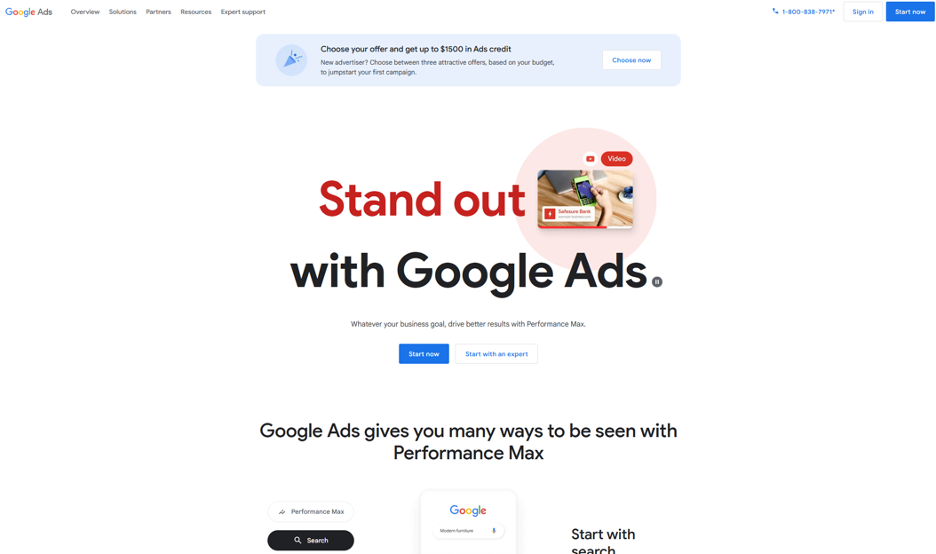
Important: Be absolutely sure you are logged in with your work email address, not a personal address.
2. Press the “Start Now” button at the top-right corner of the screen.
3. You will now see a menu that lets you create a new account.

4. Click on “New Google Ads Account”

5. Next, press on “Skip campaign creation”.
6. Fill out your country, currency, and time details. Remember, Google will bill you directly (Lokal won’t!) for the ads we will run.
Important: Select the timezone your business operates in.

7. Continue filling out your payment details and press “submit”

8. To verify your billing details, Google may charge you $50 once that is returned within 7 days.
9. If all goes well, you will see the following:

Congratulations, you now have a Google Ads account. We’re almost done. Just a few small steps left.
Add Lokal Analytics User
1. Go to your Google Ads Manager Account page.

2. Select your business account. If nothing is listed, ensure you’re logged in as the correct user.
3. In your Google Ads account, click the Admin icon –> Access and security –> Users –> Plus (+) button.
4. Enter the email address analytics@lokalhq.com for your invite.
5. Select Never under Access Expires.
6. Select the Administrator access level.
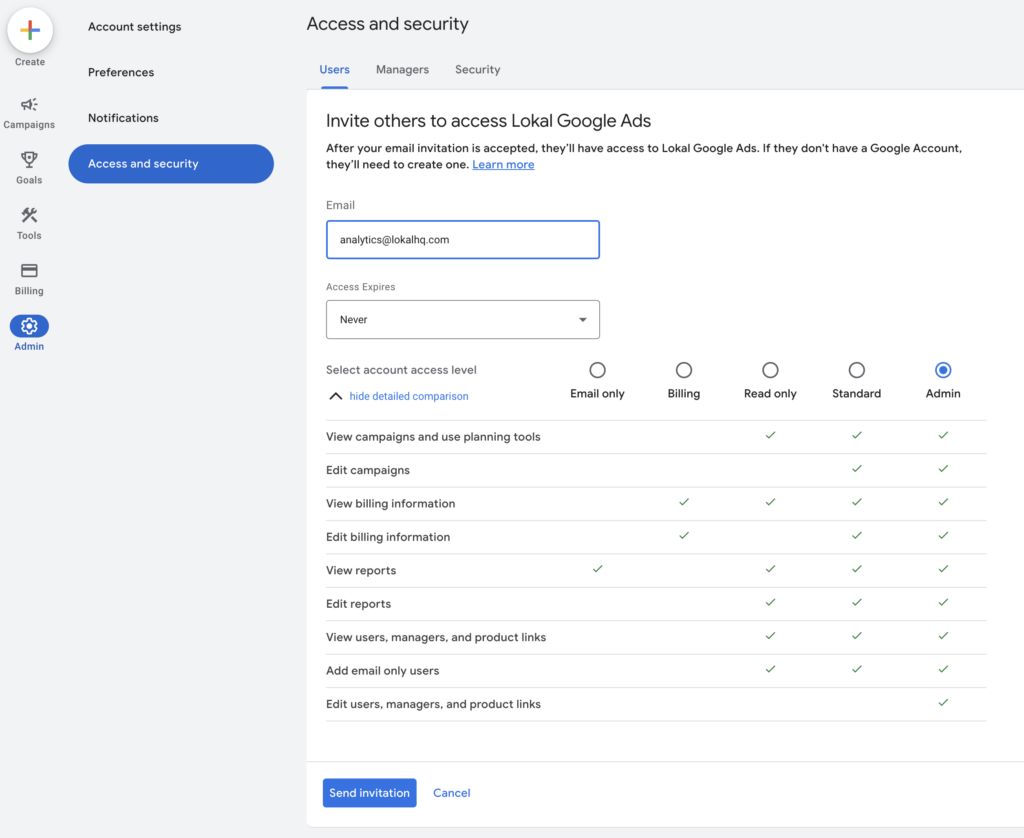
7. Click Send invitation.
8. After Lokal accepts your email invitation, you’ll receive a notification in your account.
Advertiser Verification
After creating an account, you will now see the advertiser verification screen.
Or
In your Google Ads account, click the Billing –> Advertiser Verification
Select “No” to “Is your organization an advertising agency?”

Then select, “Yes, we pay Google Ads directly”

Then press, “Get Started” to Verify you organization.

Then press, “Start Verification”.
Accepted documents by Google include:
- A letter or notice issued or stamped by the IRS, such as CP 575 that confirms your Employer Identification Number (EIN)
- A copy of the organization’s Form 8871, 8872, or 990 from the IRS website
- A state-issued certificate of business registration or incorporation
- Your organization’s most recent SEC filing, including Form 10-K, 10-Q, or 8-K
- A business credit report from Experian, Equifax, or TransUnion
- A dated letter requesting verification for a government or public agency, written on official agency letterhead

Confirm your organization’s name and proceed to upload your organization documents.

You should now see the Google Ads overview screen:

Whitelist the lokalhq.com domain
In your Google Ads account, click the Admin gear icon –> Access and security –> Security –> Allowed domains

Add Billing Info
In your Google Ads account, select your account
On the left hand bar click on billing then click on Payment method then add card information and hit save.