



Every time someone searches for an HVAC company in their area, Google has seconds to decide which businesses to display in the local SERP results.
If you’ve set the wrong category for your Google Business profile (GBP), there’s a good chance you won’t appear in these results—even when you’re the perfect HVAC contractor for the job.
That’s because Google considers the relevance of your business to the local search queries when determining rankings. The wrong category signals that your business isn’t a good match.
And there’s more proof. SEO experts rank the primary GBP category as the #1 factor influencing local search performance. This highlights how important accurate categorization is for your HVAC business’ visibility and lead generation.
In this article, we’ll walk you through the step-by-step process for updating your GBP category so you can appear in the searches that bring in your ideal customers.
Table of Contents
Why is it important to choose the correct Google Business Profile category?
Choosing the right GBP category aligns your profile with customer searches, helping you:
1. Appear in more relevant searches
Selecting the right HVAC category tells Google your business is the right fit for specific HVAC SEO keywords. This increases your chances of being featured in the Google 3-Pack (Local Pack)—the top three local business listings in search results. For example, if someone searches for “HVAC contractor in Los Angeles,” the Local Pack results will typically show businesses categorized as “HVAC contractor” in Los Angeles like this:

Notice how each business is correctly categorized, which is why they appear in the top 3 results. Now, if the search term changes to “roofers in Los Angeles,” those same businesses won’t appear because they’re not categorized as “roofing contractors.”
Instead, businesses with the correct roofing-related category will take their place like this:
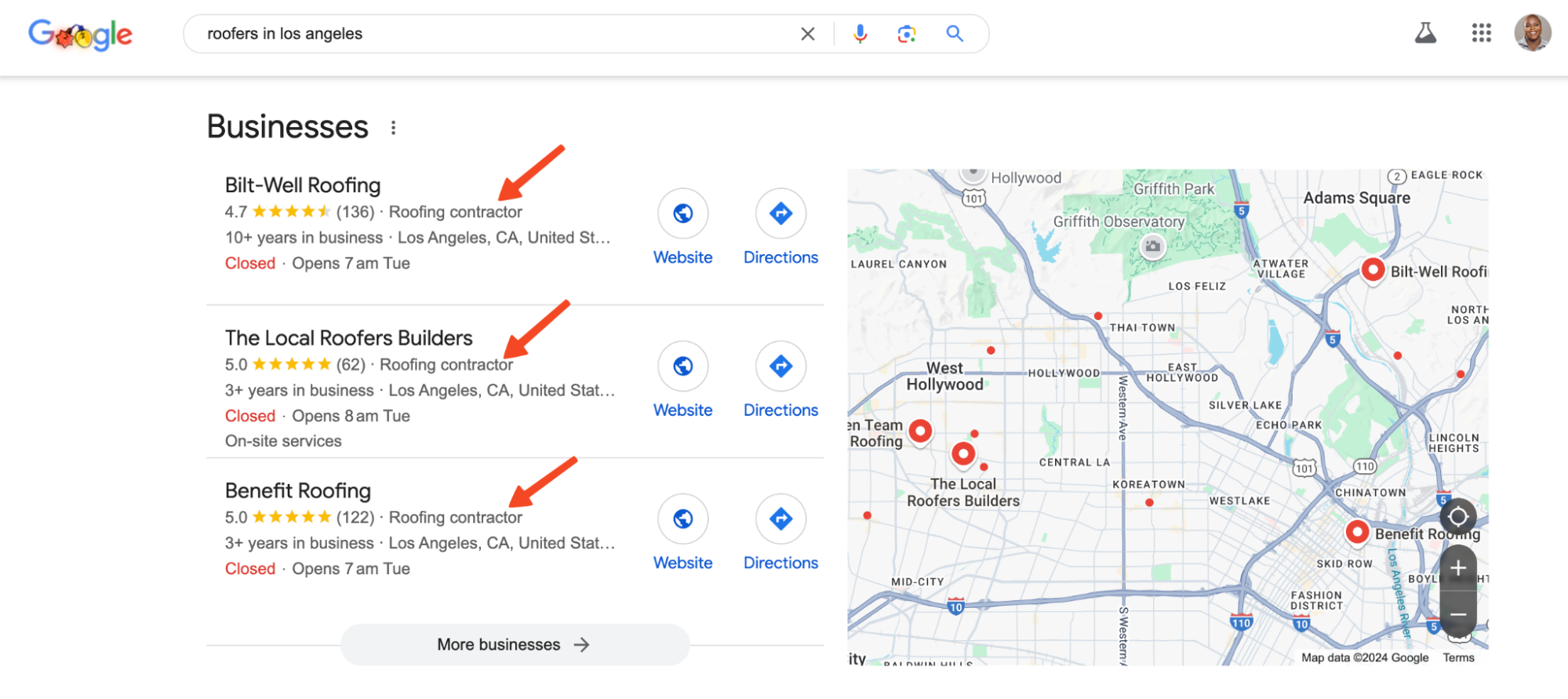
The right category ensures you’re not filtered out of the relevant search results so you can connect with your target ideal customer persona (ICP).
2. Boost your rankings in the map pack
A 2023 study found that GBPs with at least one correct category ranked higher on Google Maps compared to others.
This is crucial because many prospects search for businesses directly through Google Maps, and appearing in these results significantly increases your visibility.

Choosing the right category enhances your chances of ranking higher in the local pack (Google’s top three local business listings).
This placement drives more traffic to your business and increases conversion actions like calls, directions, and website visits, helping you capture more leads ready to take action.
3. Attract qualified customers
Relevant searches like “HVAC contractor near me” or “air conditioning repair in Denver” attract high-intent customers who are actively looking for your services.
By choosing the right Google Business category and optimizing your profile, you’re more likely to appear in the Local Pack for these location-based or near me searches.
And that’s a game-changer. Research from SOCi shows that businesses featured in the Local Pack receive 126% more search traffic and 93% more conversion-focused actions—such as calls, directions, and website clicks—than others.
This means a properly categorized and optimized profile increases your visibility and helps you get leads ready to take action and convert into paying customers.
Step-by-step process on how to change your Google Business category
Step 1: Log into your Google Business Profile account
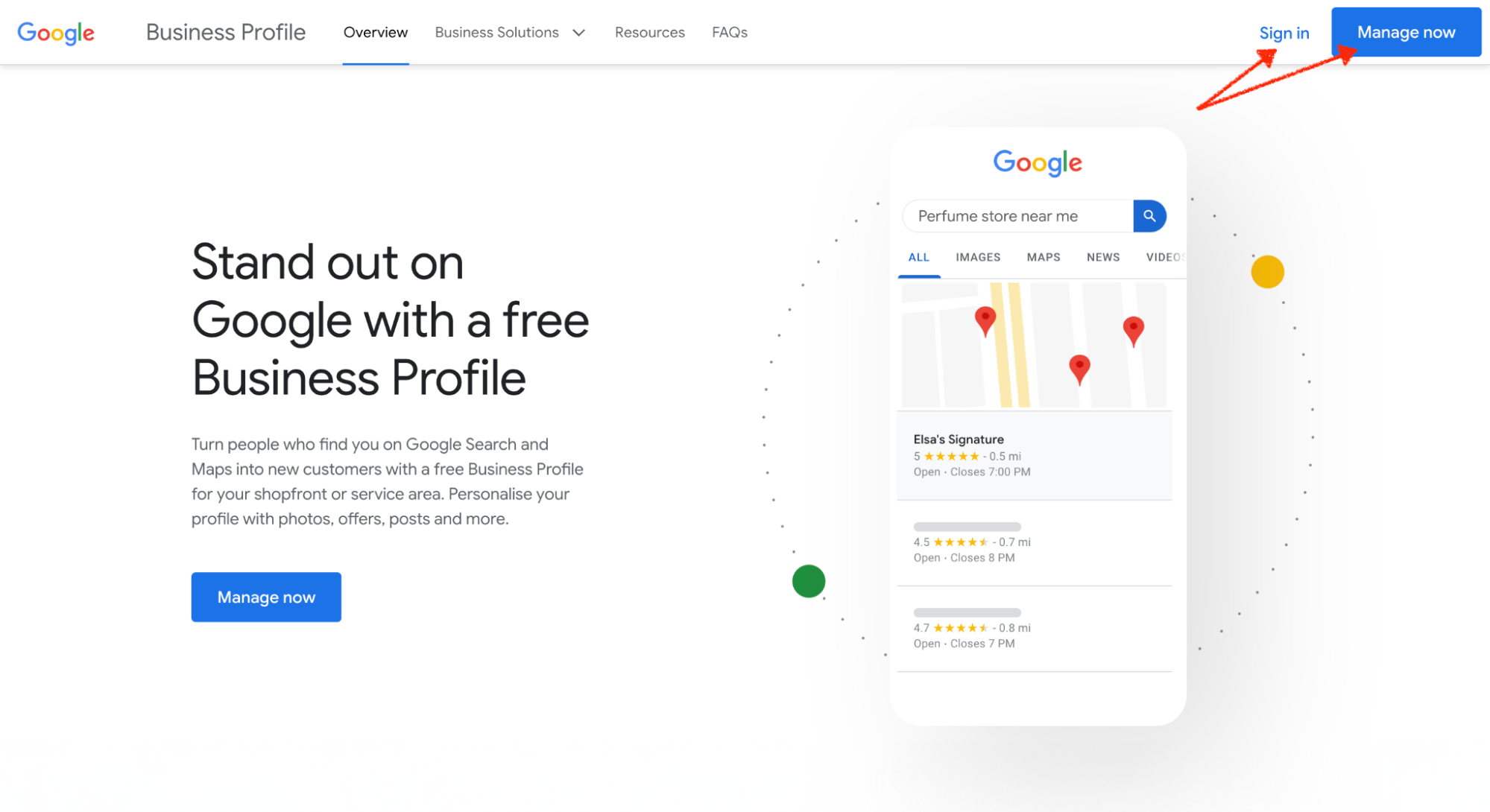
First, go ahead and sign in to your Google Business Profile. If you can’t find your profile, make sure you’re logged into the correct Google account, or follow these troubleshooting steps to locate it.
Step 2: Head over to “edit profile”
Once you’re logged in, look for the edit profile on the dashboard menu and click on it.

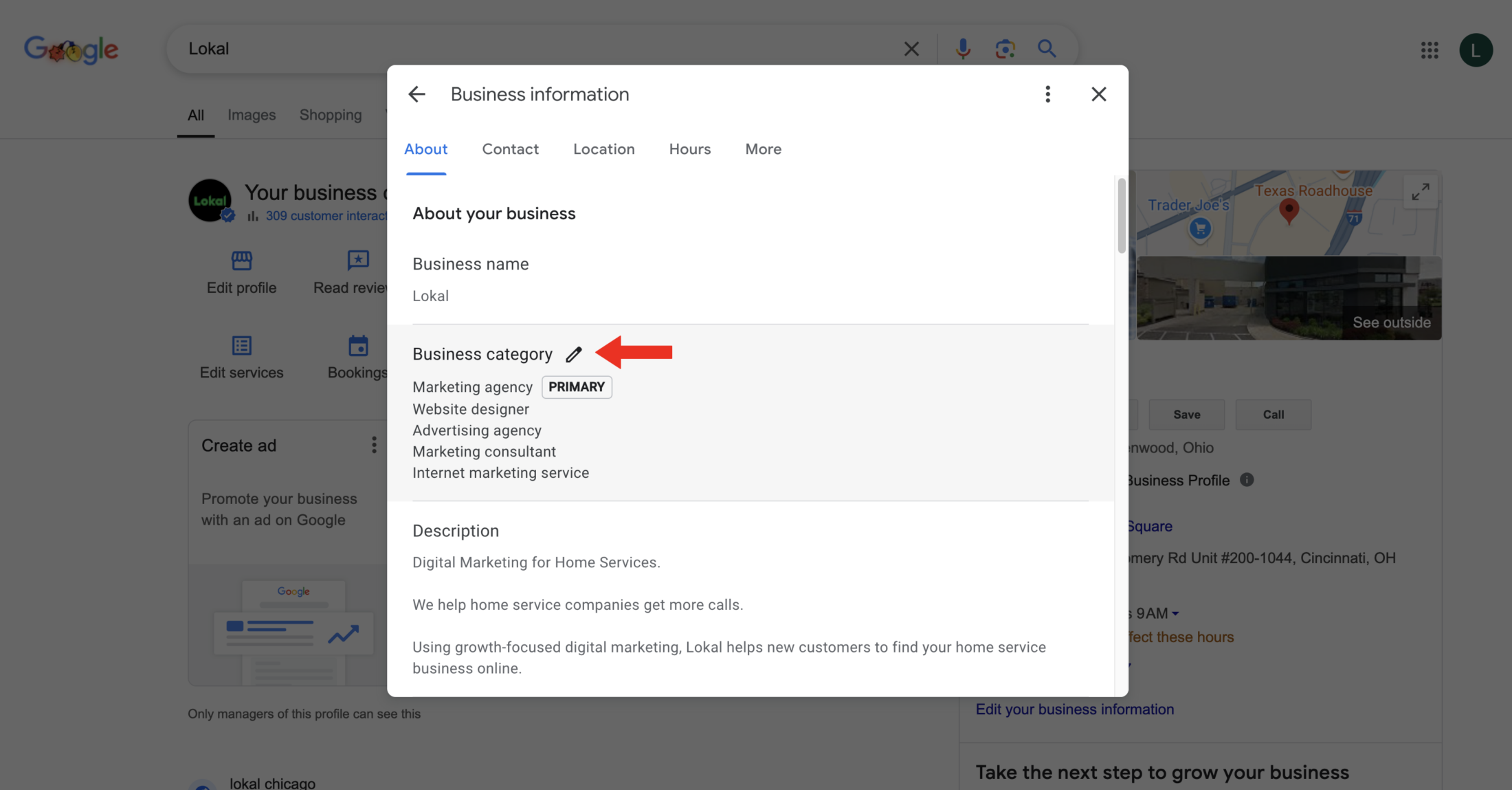
Step 3: Edit your current business category
Find the “Business category” section and click the pencil icon (edit) next to your current category.
Step 4: Choose the right category for your business
You’ll see a dropdown menu with different categories. Pick the one that best describes your business.
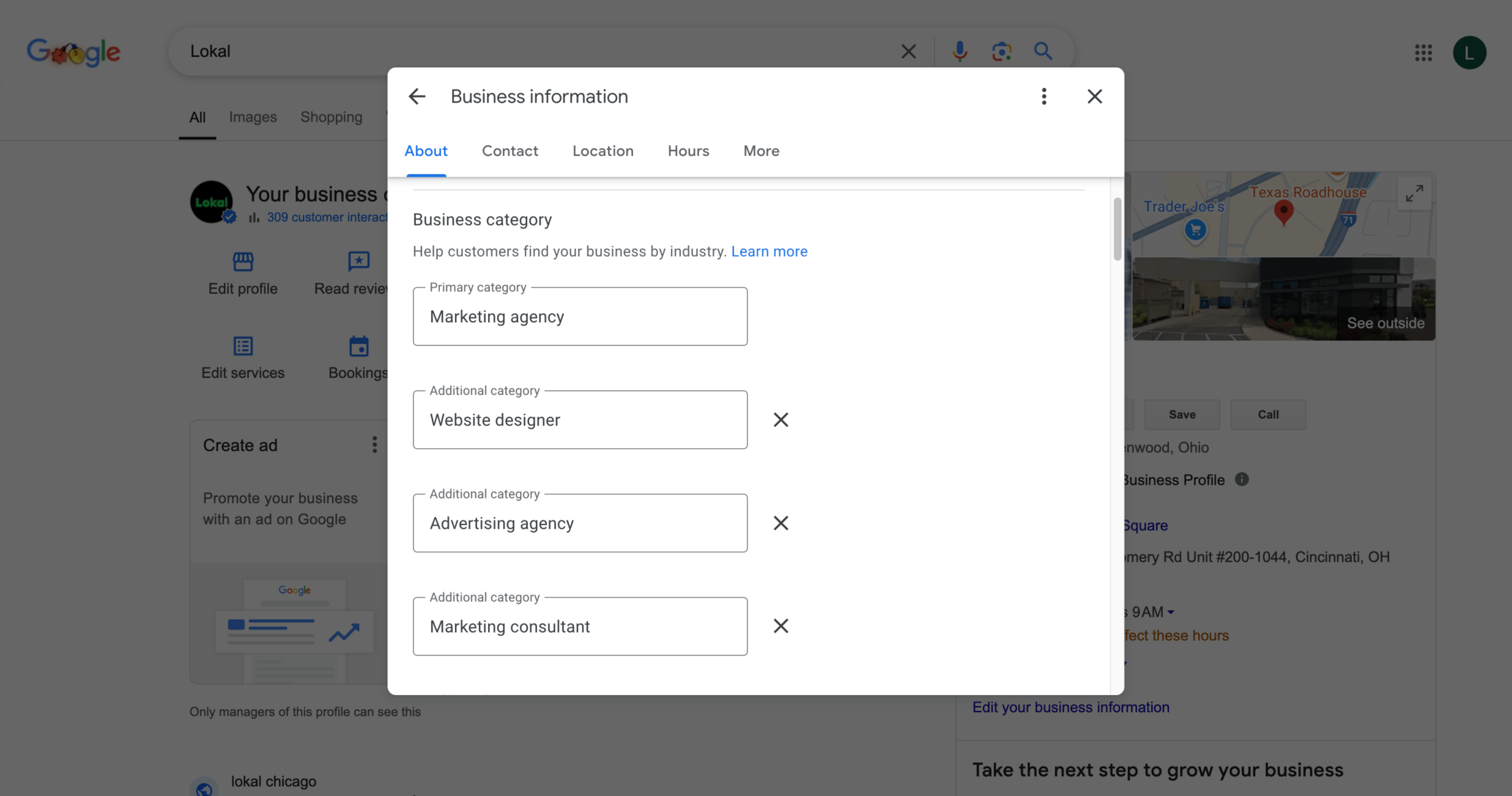
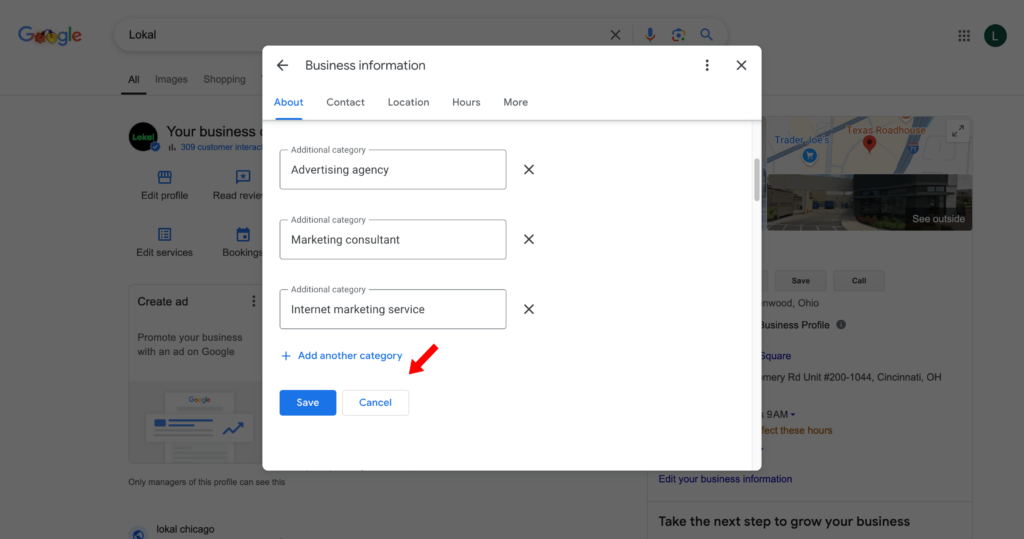
If you need to add any additional categories, just click “Add another category” and select the ones that fit.
Step 5: Save your changes
Once you’ve chosen your categories, hit “Apply” to save everything. That’s it – your new category is now set!
Note: The changes may take 24 to 48 hours to reflect.
Step 6: Re-verify your GBP
When you make a major change to your profile like this, Google may require you to re-verify your listing to confirm the authenticity of your business.
If you are unable to re-verify your profile, Google can temporarily suspend your listing, so your business won’t appear in search or map results until you complete the verification.
To avoid this, check your email or dashboard for the re-verification notification—the process is similar to the initial setup verification.
After the complete process, Google will send a unique code through one of several methods:
- Postcard: The most common method is to mail a postcard with a verification code to your business address.
- Phone call or SMS: Some businesses may receive a code via phone call or text message.
- Email: A verification code can also be sent to your registered business email.
- Video call: In exceptional cases, verification may occur through a live video call with a Google representative.
Once you receive the code, enter it into your GBP account to complete the re-verification process. Re-verification requests are time-sensitive, so complete the process as soon as possible to avoid disruptions in your profile visibility. If Google uses the postcard method, ensure someone at your business is ready to receive and act on it quickly.
To make the re-verification process smooth, ensure your business address, phone number, and email are accurate and accessible, as you may need them. Also, Google might request documents like utility bills, business licenses, or lease agreements, so keep them handy.
Step 7: Monitor your performance
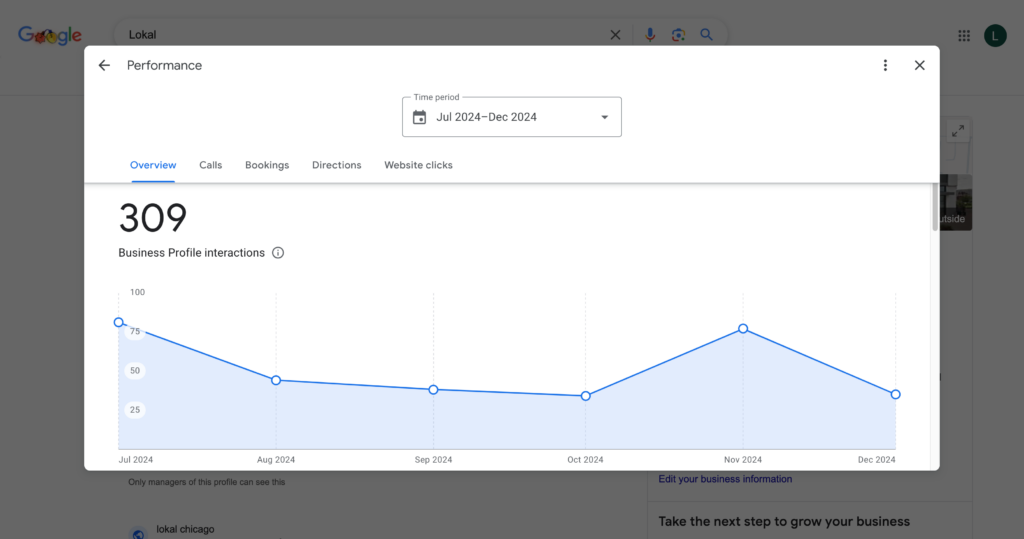
After updating your category, you should track how this change affects your visibility and engagement.
Use Google Analytics and GBP insights to monitor key performance indicators (KPIs) such as:
- Search impressions: Are more people seeing your listing?
- Click-through rates (CTR): Is there an increase in clicks to your website or calls?
- Customer actions: Has the number of requests for directions or messages received changed?
If there are improvements, it means your optimization efforts are working.
You can adjust your strategy even further based on what’s working, like focusing on high-performing keywords or creating more content.
But if there is no improvement after some time, you might need to partner with an HVAC marketing agency like Lokal to figure out what’s wrong.
Keep your Google Business profile up-to-date
Google uses the information on your profile to determine when to display your business in search results. An accurate, up-to-date profile optimized with the right HVAC category increases your chances of showing up in the local map pack and organic search results.
However, staying on top of all the details while managing a busy HVAC business can be overwhelming. That’s where Lokal comes in. We specialize in managing your Google Business Profile, ensuring it’s always optimized for your local service area and up-to-date, so you outperform competitors, attract more qualified leads, and drive more conversions.
Ready to boost your local search visibility and book more jobs?
It’s what we do best. Book your free consultation today!